
Your first month-end close in FynHelp, step by step
Sign up, upload a bank statement and the Tally books, clear the exceptions and get a signed-off MIS, using free sample files. Every screenshot is the real product.
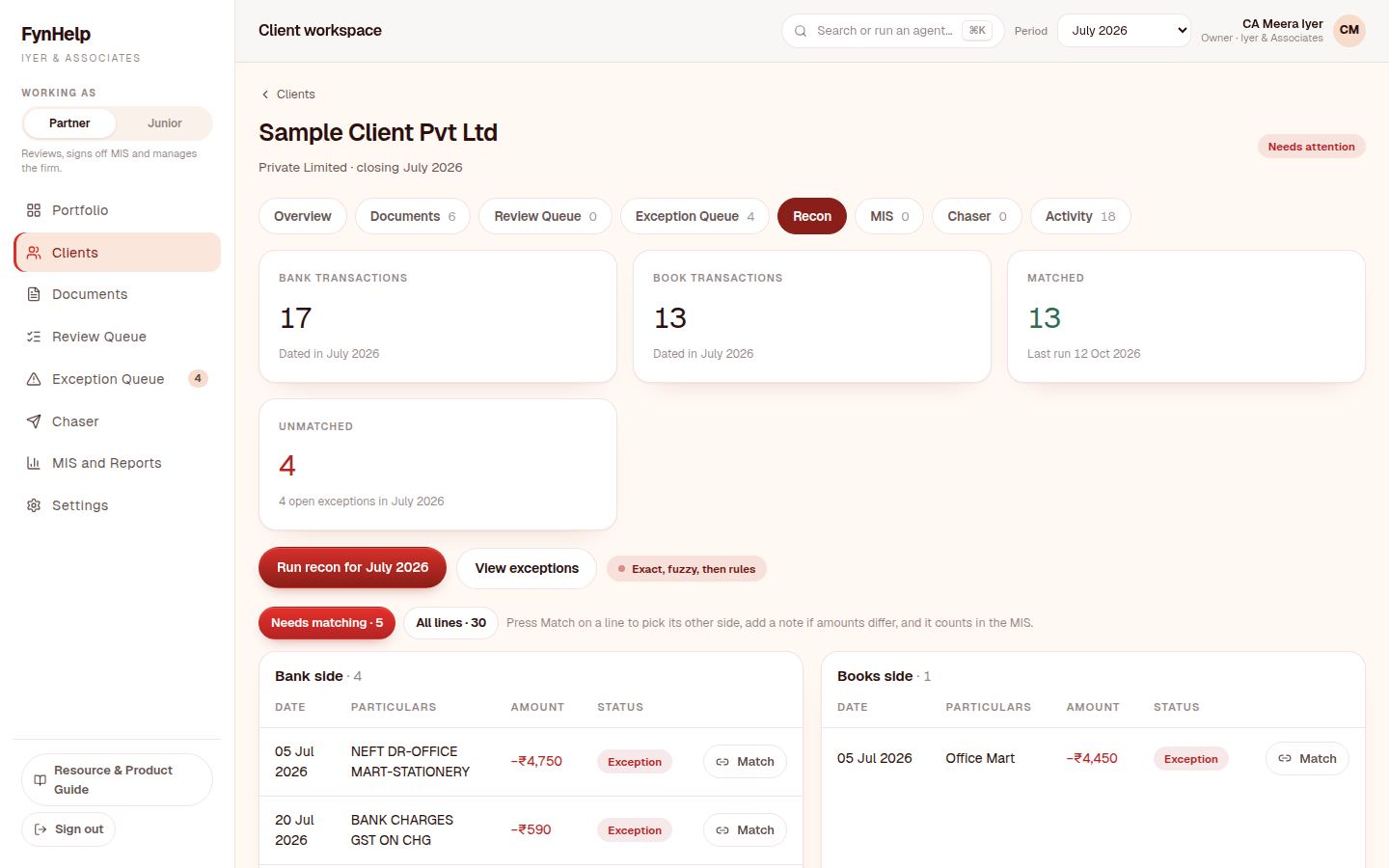
This is a full walkthrough of one month-end close in FynHelp, start to finish, using the free sample files anyone can download. You will sign up, add a client, upload a bank statement and the Tally books, let the agents match them, decide the few lines that do not match, and finish with a monthly MIS a partner signs off. Every screenshot below was taken on those same files, so what you see is exactly what you will get.
It takes about fifteen minutes. You do not need any real client data.
Before you start: download the sample files
Open fynhelp.com/samples and download the files in the July 2026 walkthrough pack. They describe one fictional company, Sample Client Pvt Ltd, for July 2026:
- R01: HDFC bank statement, 17 lines
- R02: the Tally bank ledger for the same account (the books)
- R05: GST purchase register, with one deliberately mistyped GSTIN
- R07: TDS register under sections 194C, 194I and 194J
- R08: payroll sheet with PF and ESI
- R09: Razorpay settlement report
- R12 and R13: the August statement and ledger, for step 9
Step 1. Create your account and firm
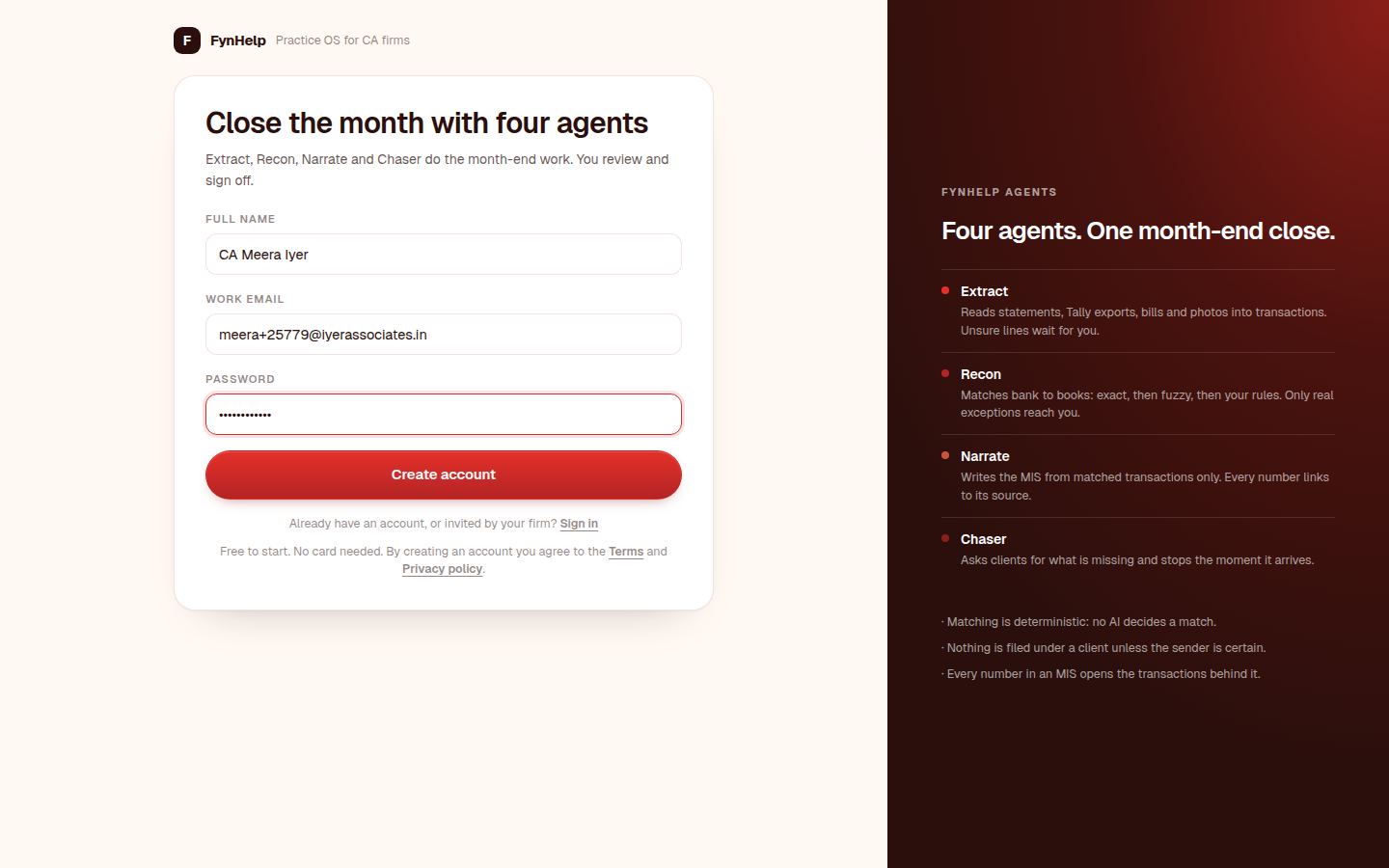
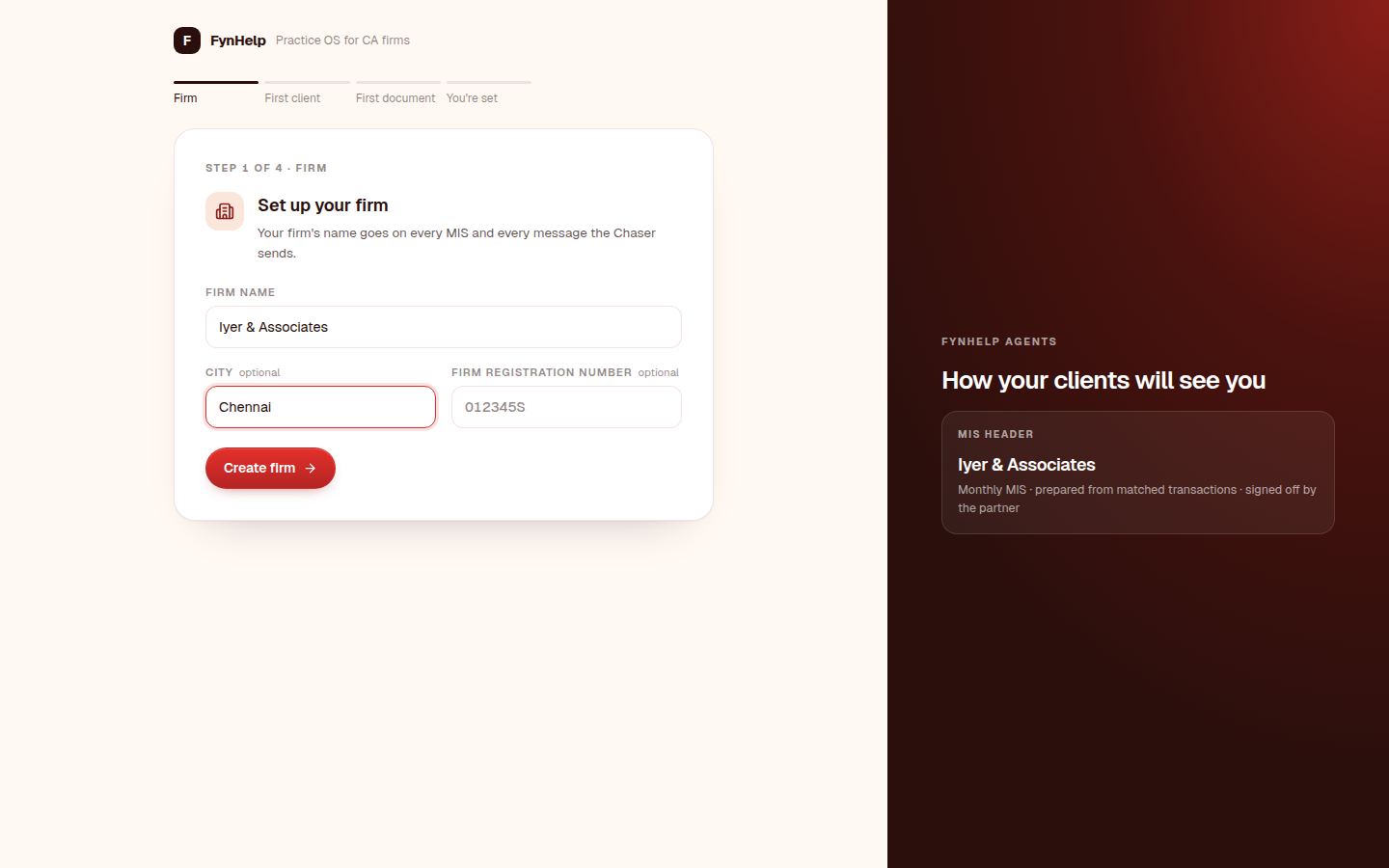
Click Start free trial on the home page. Every firm gets 14 days of Starter free, no card needed. Enter your name, work email and a password, then name your firm and city. The person who creates the firm is its owner and works as a Partner.
Step 2. Add your first client
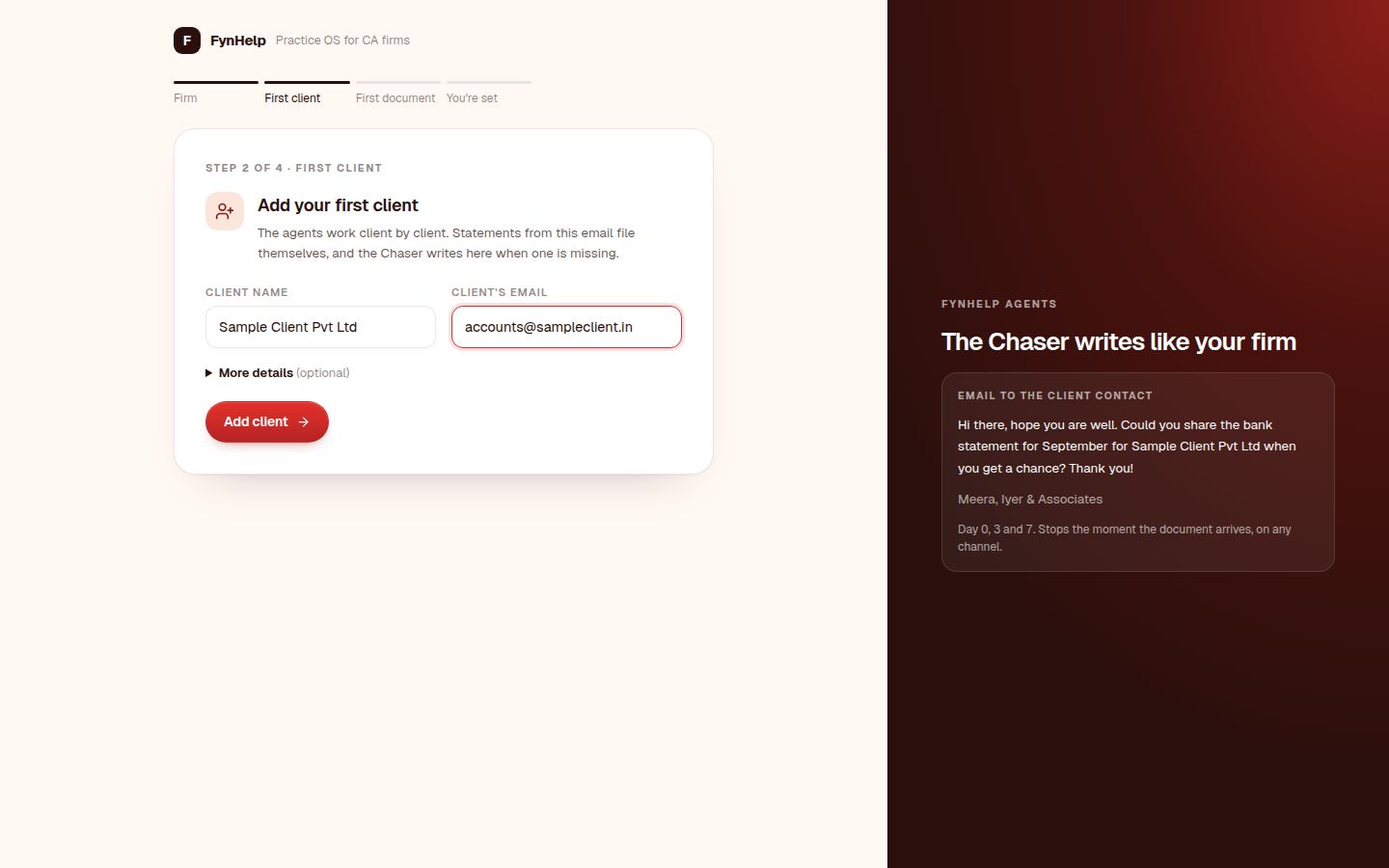
Add the client whose books you close. For this walkthrough use Sample Client Pvt Ltd. The GSTIN is optional; if you enter one, FynHelp checks its last character (the check digit), so a typo is caught before it reaches a register.
Step 3. Upload the bank statement
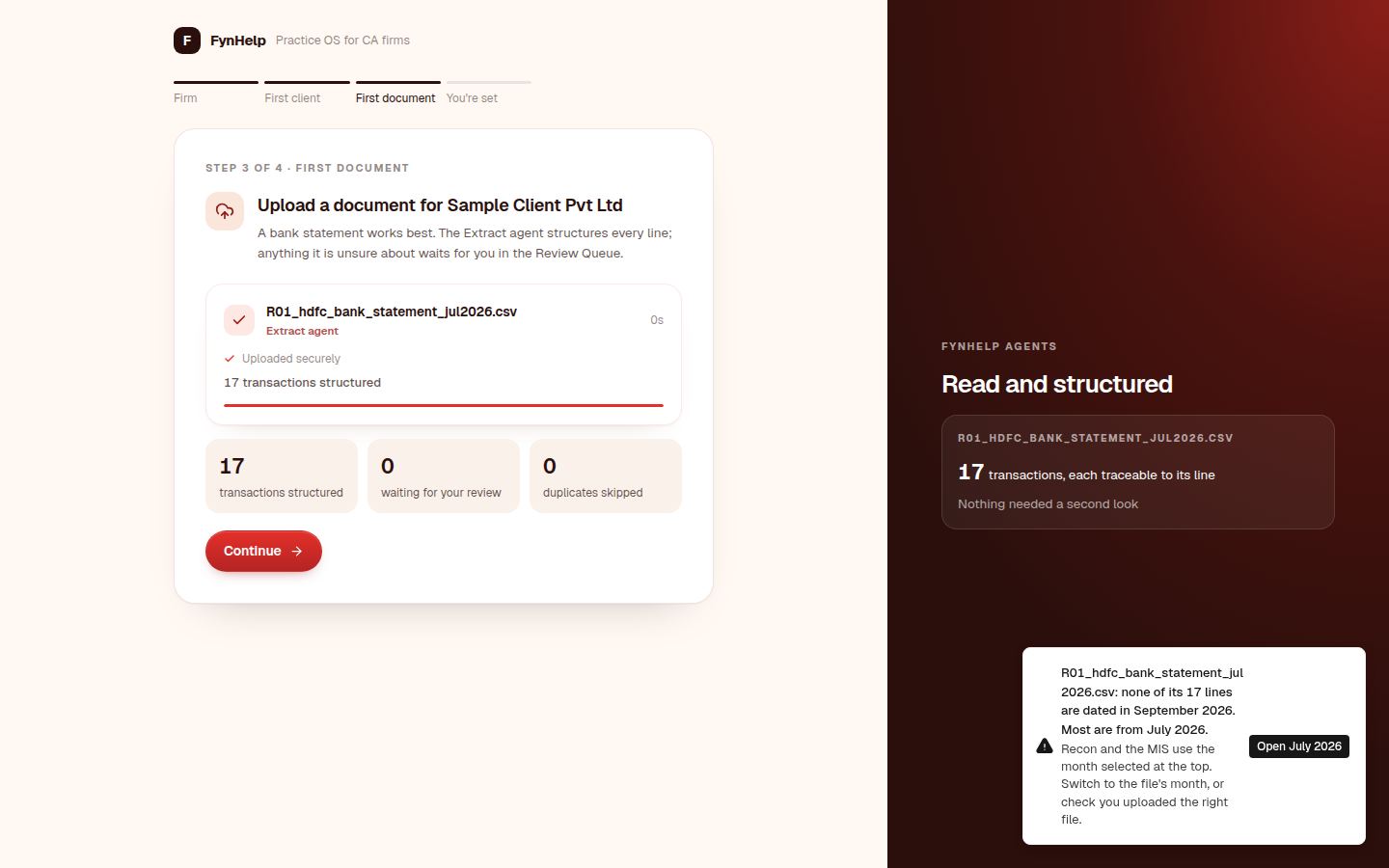
Upload R01_hdfc_bank_statement_jul2026.csv. The Extract agent reads every line into a date, an amount and a counterparty. Lines it is unsure of wait in the Review Queue; here all 17 are clean.
If the month selected at the top of the screen is not July 2026, FynHelp tells you the file's lines belong to July and offers Open July 2026. Click it. Recon and the MIS always work on the month selected at the top.
Step 4. Add the books
Open the client and the Recon tab. Recon needs both sides: the bank and the books for the same month. Click Upload books and choose R02_bank_ledger_tally_jul2026.csv. The file is named "bank ledger" on purpose: FynHelp recognises a Tally ledger by its contents, files it as the books, and reads Tally's Debit column as money in.
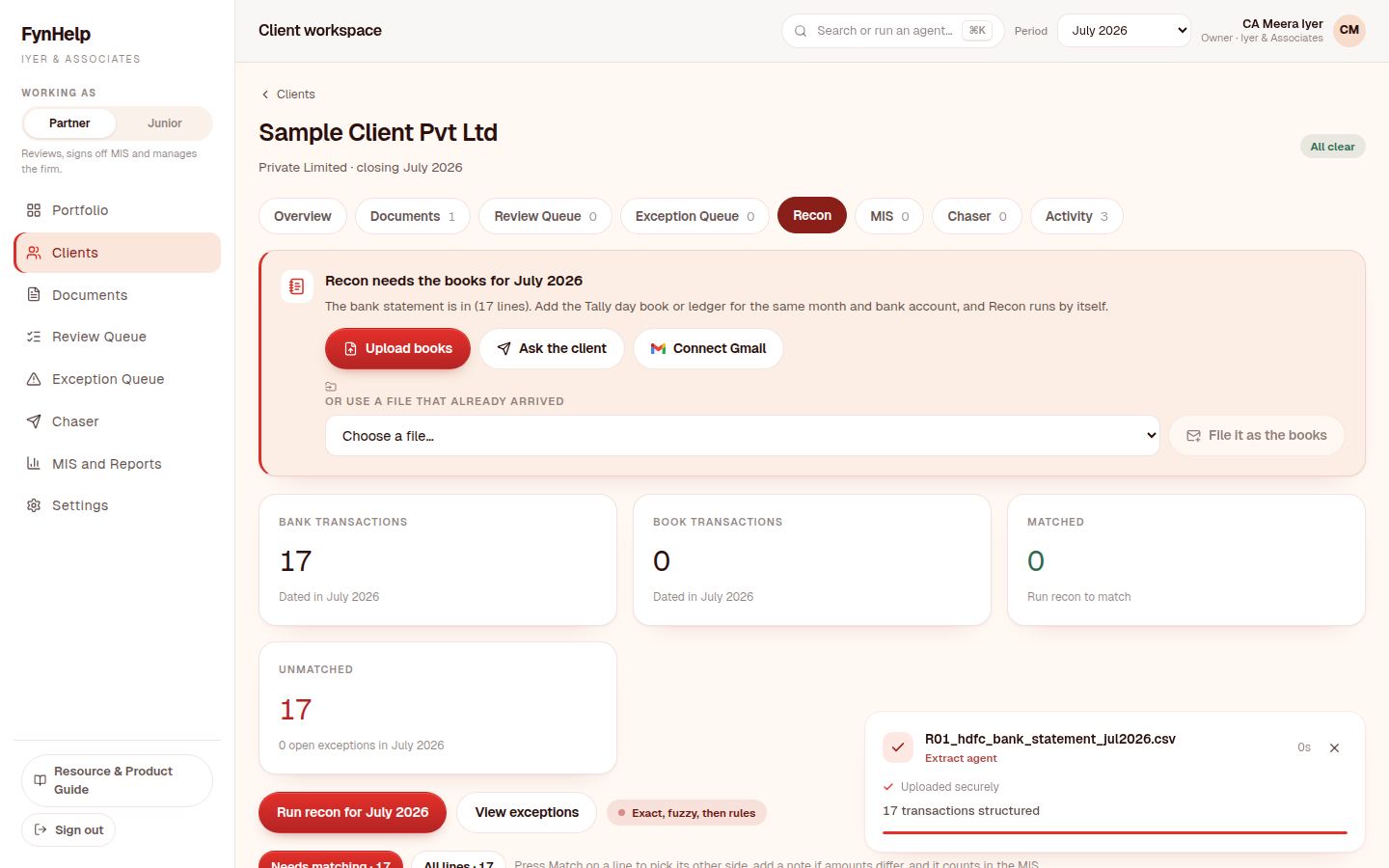
No books from the client? Ask the client creates a reminder that Chaser follows up by email on day 0, 3 and 7, with a WhatsApp quick-send link, and escalates to the partner after two unanswered follow-ups.
Step 5. Upload the registers and reports
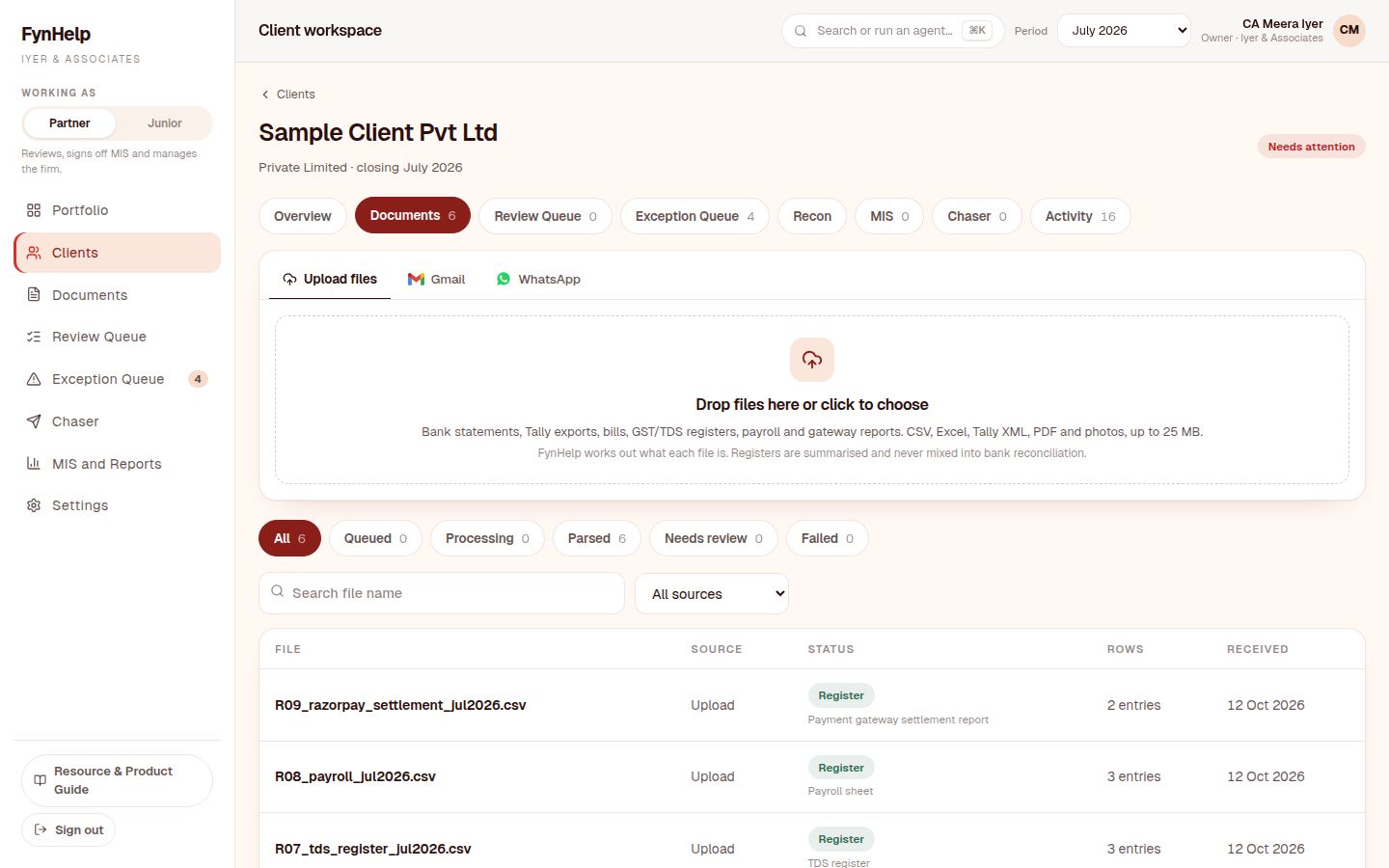
On the Documents tab, drop in R05, R07, R08 and R09 together. FynHelp works out what each file is. Registers and reports are kept as registers with their totals and checks; they do not add bank or book lines, so they never change the match.
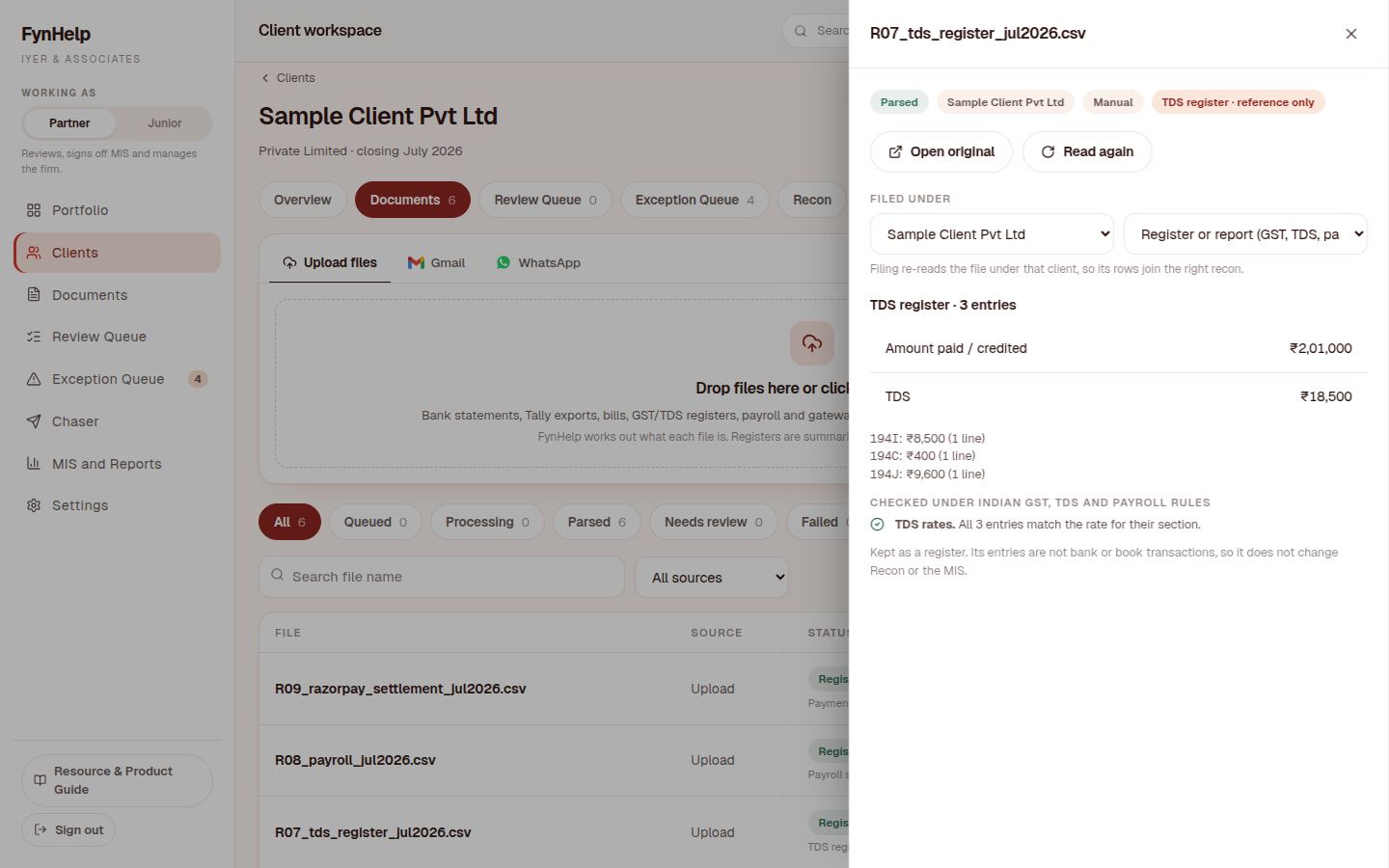
Click the TDS register. It shows TDS of ₹18,500 split by section (194I ₹8,500, 194C ₹400, 194J ₹9,600) and confirms each rate matches its section.
Now the GST purchase register. Taxable value, IGST, CGST and SGST are totalled, and one supplier's GSTIN fails the check-digit test. That is the deliberate typo in the sample file, and the kind of error that otherwise surfaces months later as an ITC mismatch.
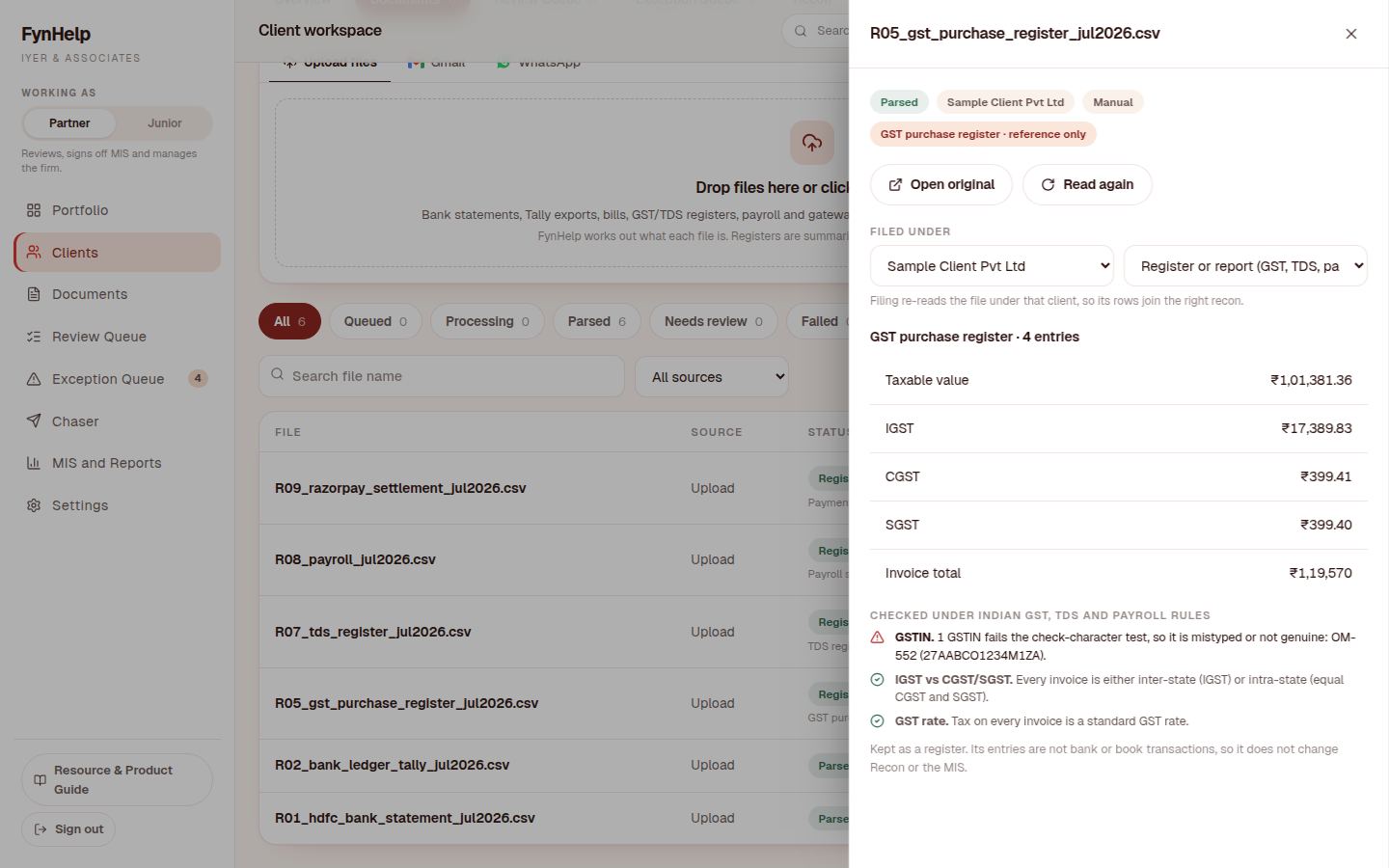
The payroll sheet flags an employee whose ESI is deducted above the ₹21,000 wage limit, and the Razorpay report is read as gross ₹50,000, fees ₹1,000, GST on fees ₹180 and net ₹48,820.
Step 6. Run the reconciliation
Back on Recon, click Run recon for July 2026. Bank lines are matched to book lines in passes: exact amount and date first, then the same day, then close amounts and similar names, then your firm's rules, then split payments. In the sample, 13 of the 17 bank lines match. Four do not, and each becomes an exception with a reason.
Step 7. Resolve the exceptions
Open the Exception Queue. Every line has a reason code, a plain-language explanation, and the agent's best suggestion. You have three choices on each: match it, mark it reconciled elsewhere, or ignore it. Each choice needs a short note when it matters, and the note is kept on the audit trail.
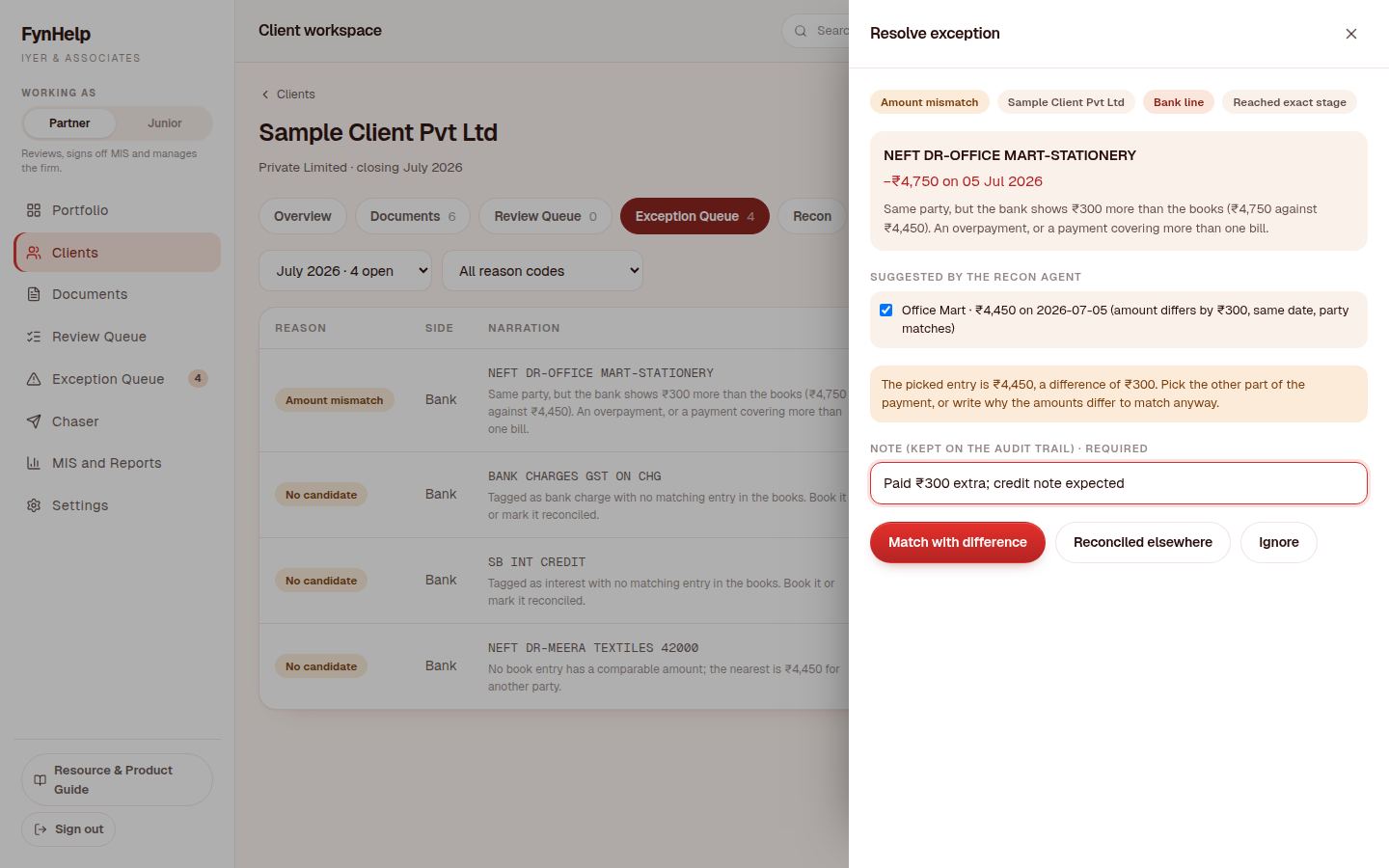
Amount mismatch. The bank paid Office Mart ₹4,750; the books say ₹4,450. Same party, same date, ₹300 apart. The agent proposes the match. Write why the amounts differ, for example "Paid ₹300 extra; credit note expected", and click Match with difference.
Three remain.
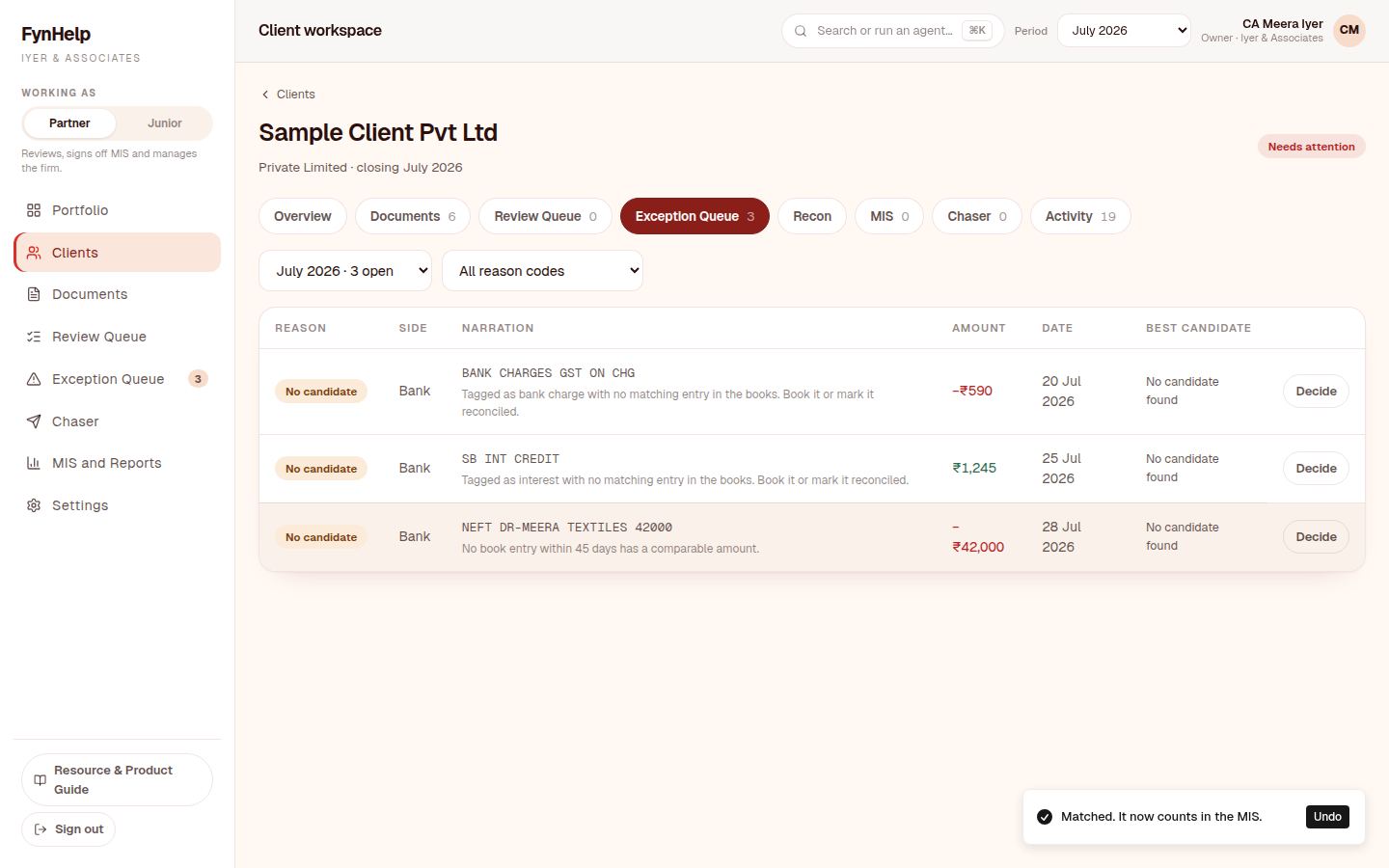
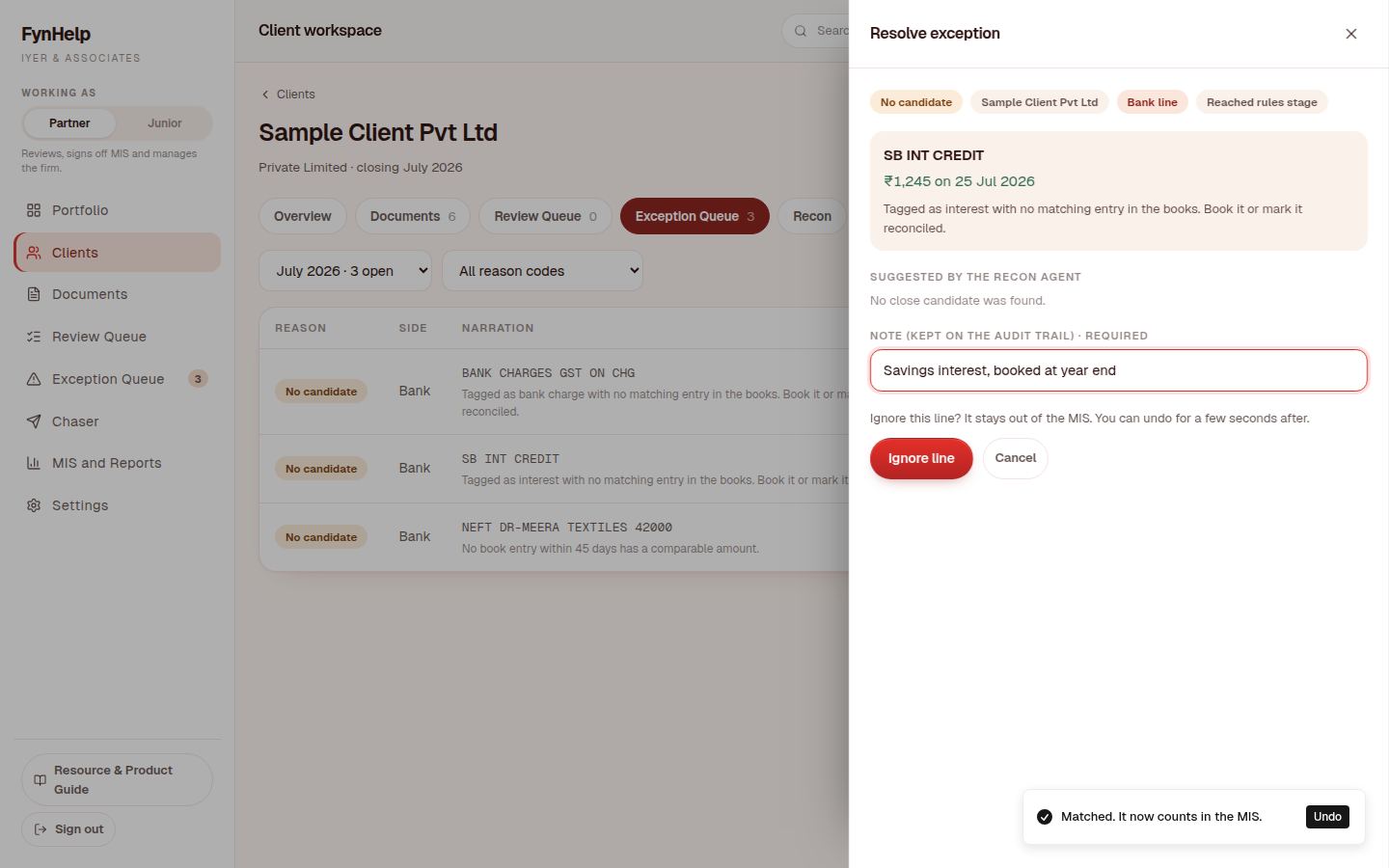
Savings interest (₹1,245). Not booked monthly. Click Ignore with the note "Savings interest, booked at year end".
Bank charges (₹590). Already booked by a journal. Click Reconciled elsewhere with the note "Booked by journal JV-14".
Meera Textiles (₹42,000). No entry in the books at all. Leave it open; that is a question for the client, not something to guess. The MIS will leave it out and say so.
Step 8. Generate the MIS and sign it off
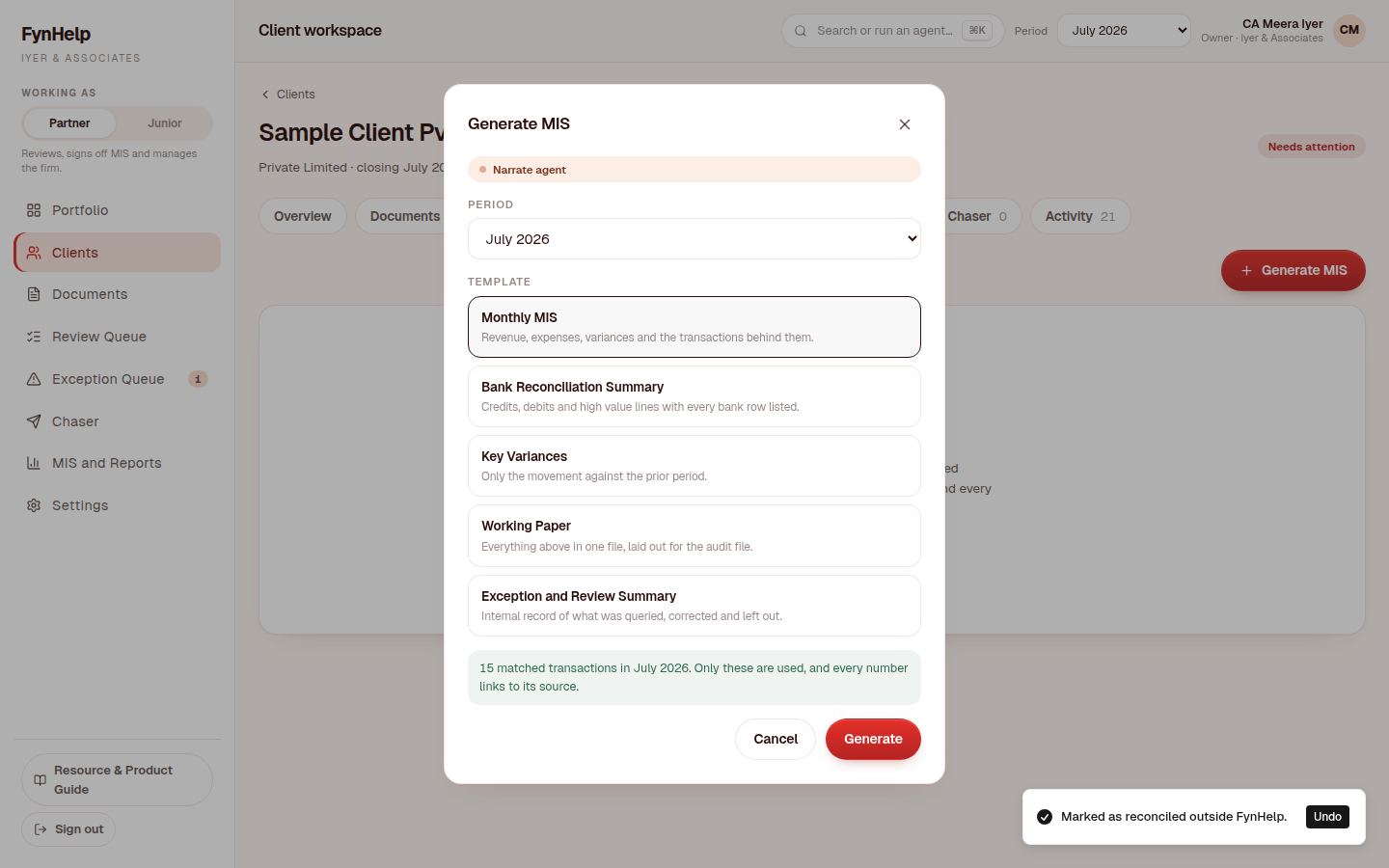
Open the MIS tab and click Generate MIS. The Narrate agent builds the report from matched lines only.
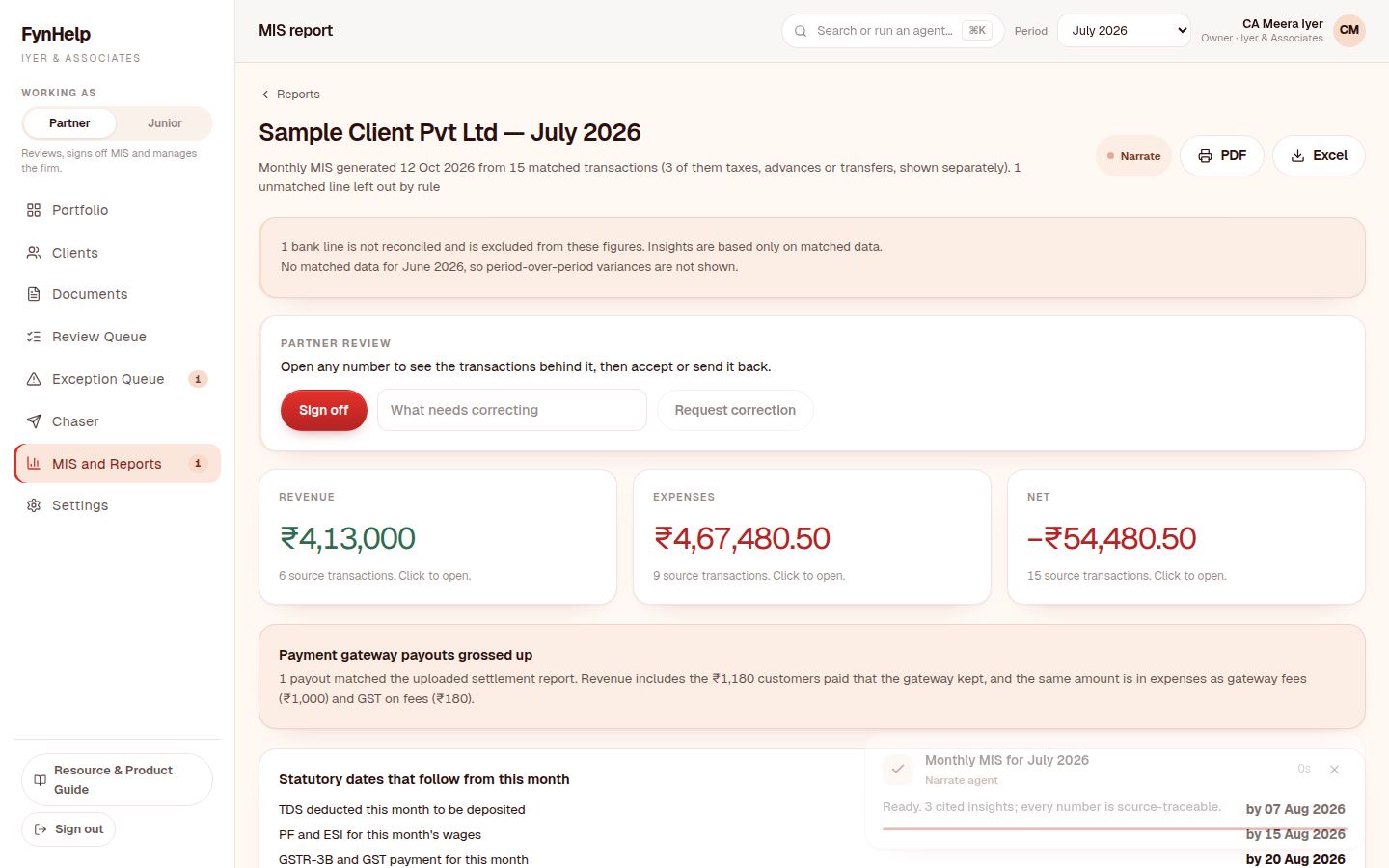
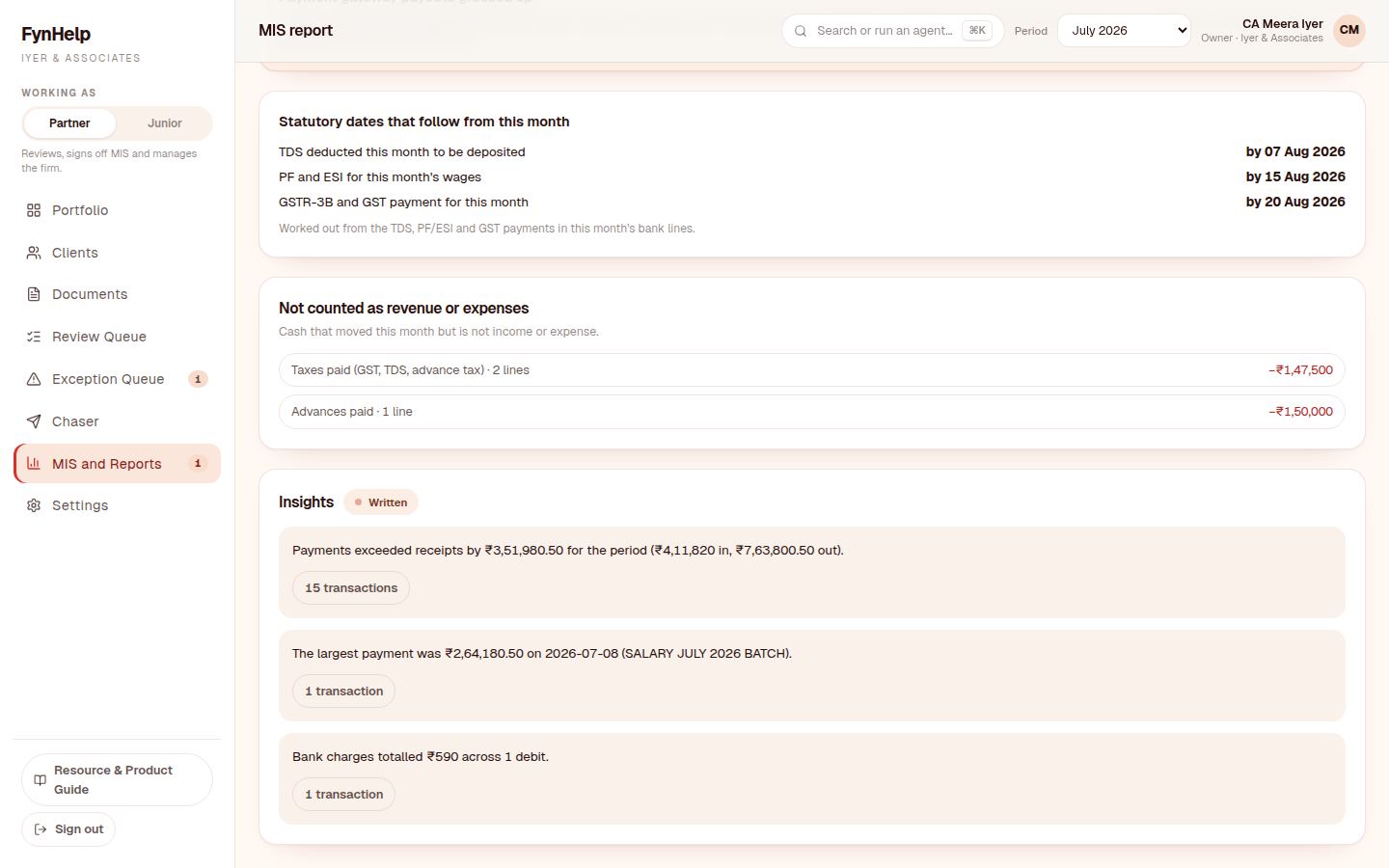
Scroll down for the statutory due dates that follow from the month's payments (TDS by 7 August, PF and ESI by 15 August, GSTR-3B by 20 August), cash that moved but is not income or expense (taxes and advances), and three insights. Each insight names the transactions it is based on.
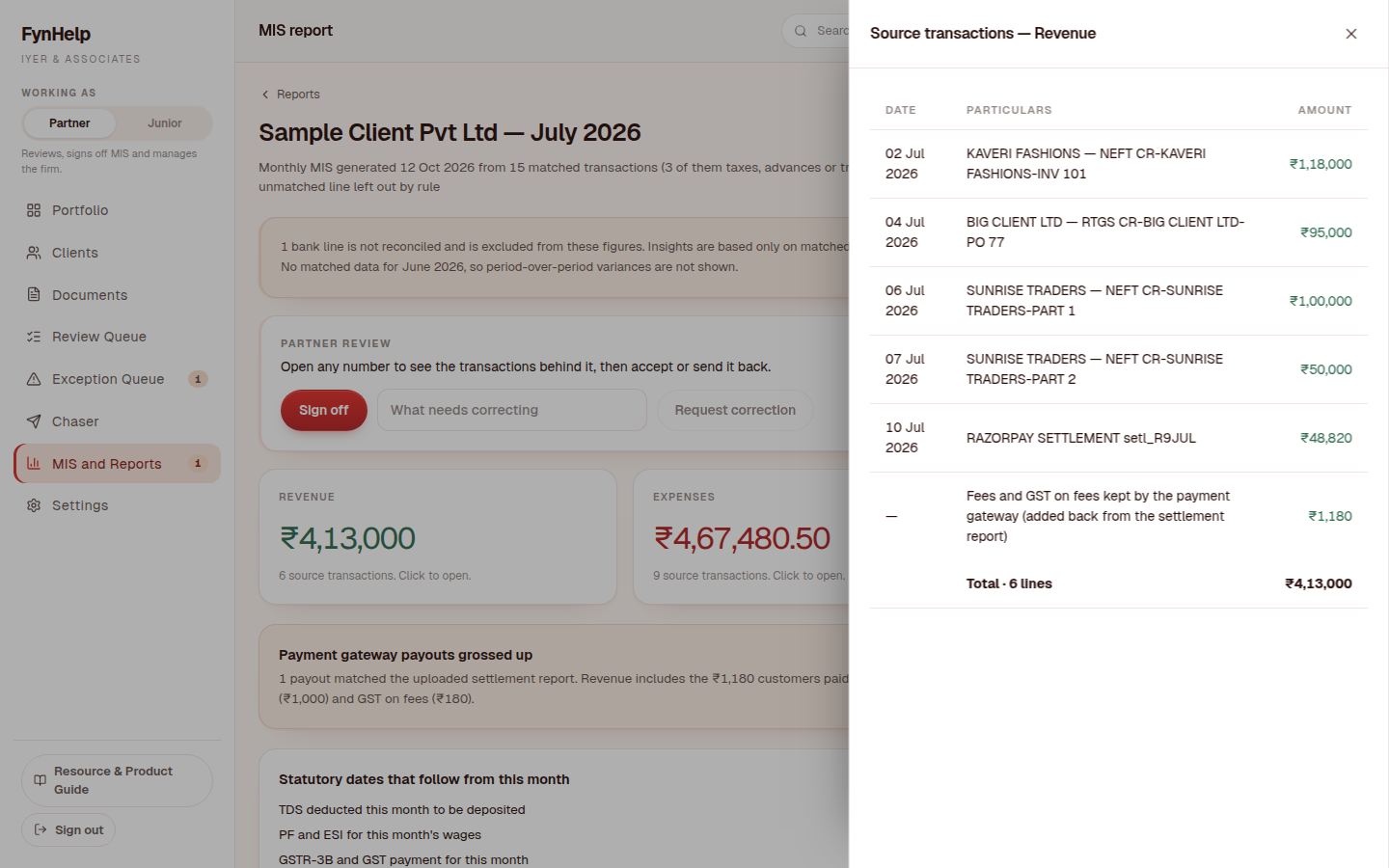
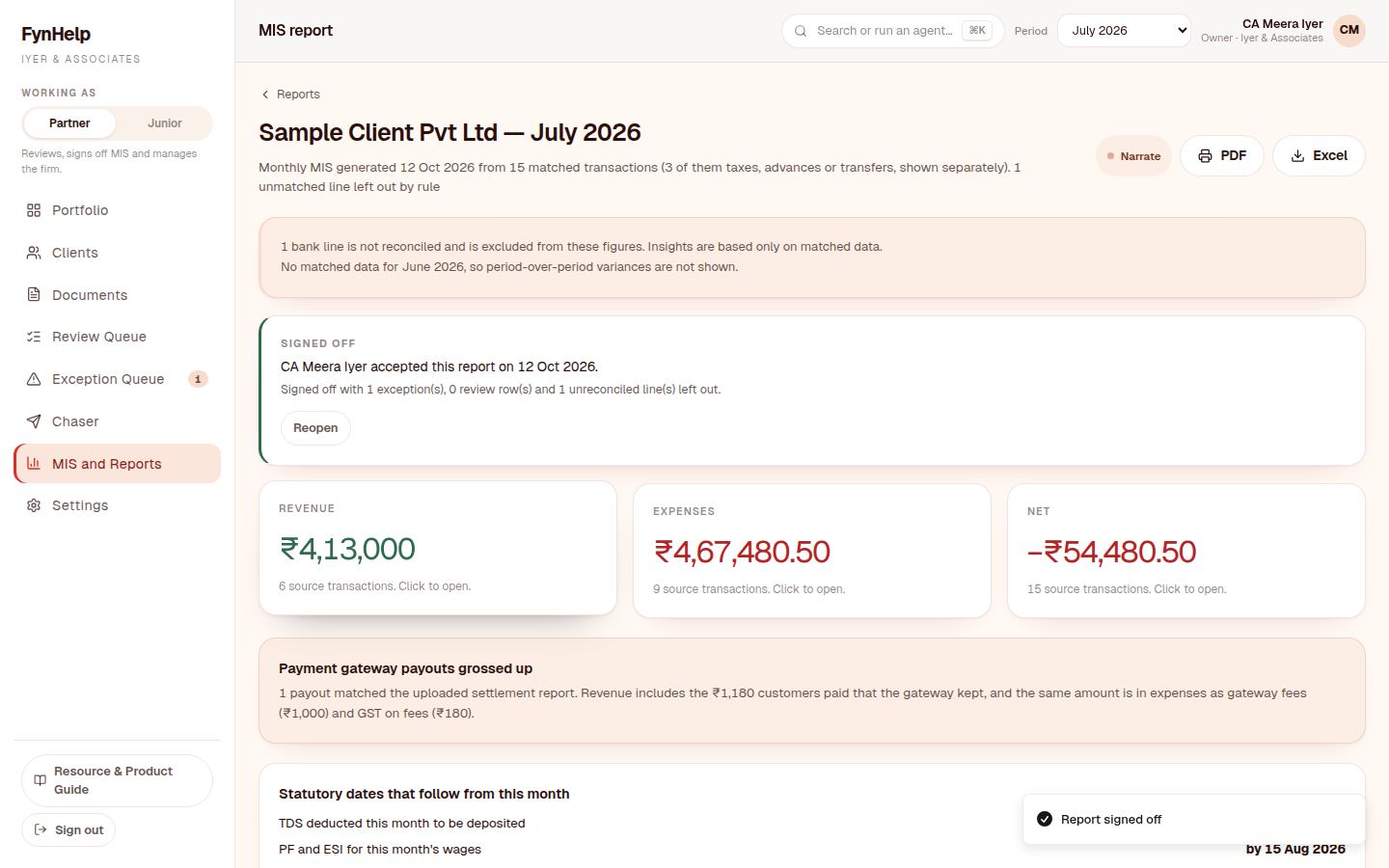
Click Revenue. The drawer lists the six transactions behind ₹4,13,000, including the ₹1,180 the payment gateway kept as fees, added back from the settlement report, with a total that ties.
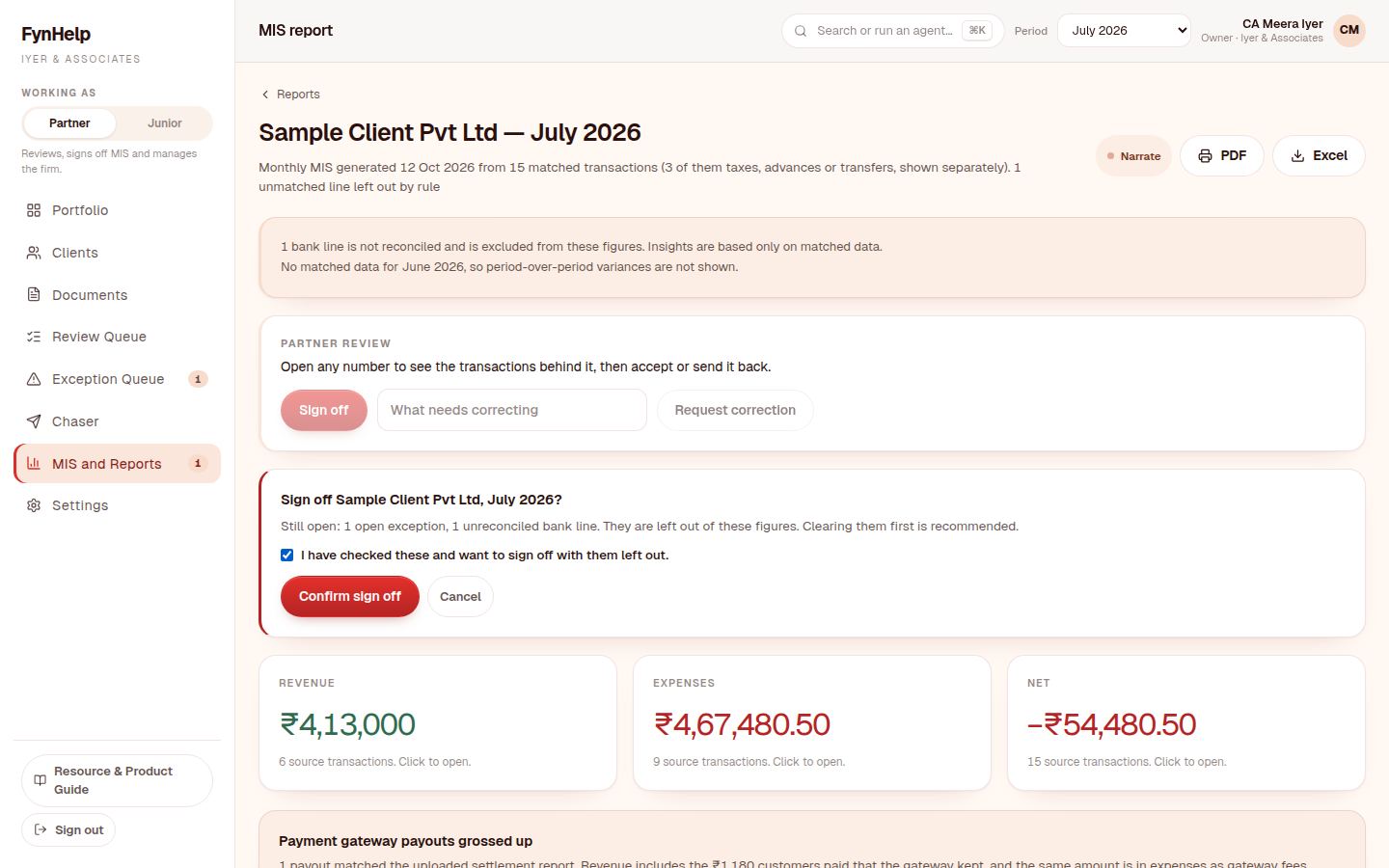
As the partner, click Sign off. FynHelp shows what you are accepting (one open exception, one unreconciled line left out) and asks you to confirm. Download the signed-off report as PDF or Excel to send to the client.
Step 9. The next month remembers
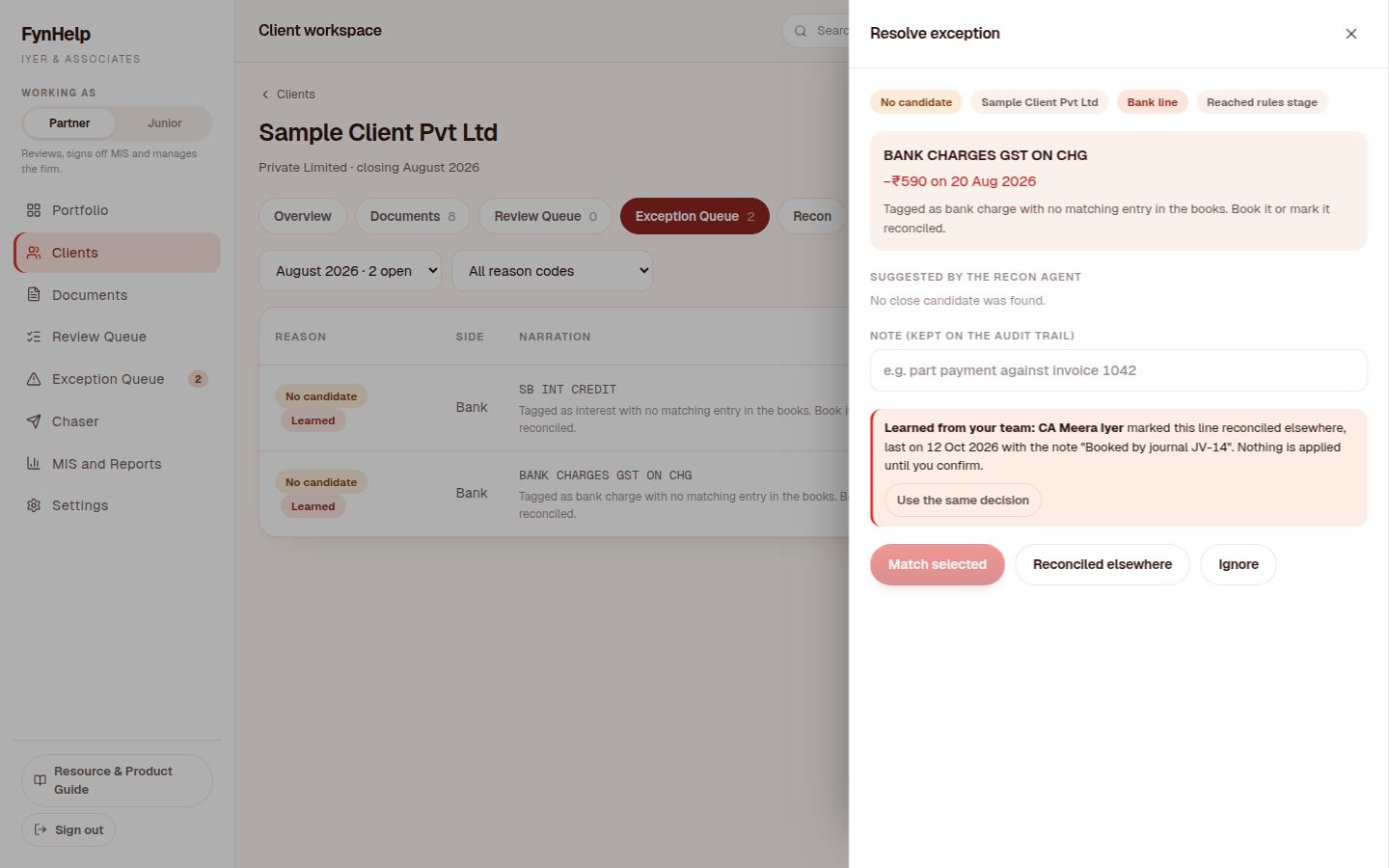
Switch the month at the top to August 2026 and upload R12 and R13. When the same bank charge appears again, the exception carries a Learned tag: the agent shows what your team decided in July, who decided it and the note they left, and offers Use the same decision. Nothing is applied until someone confirms.
Partners and juniors
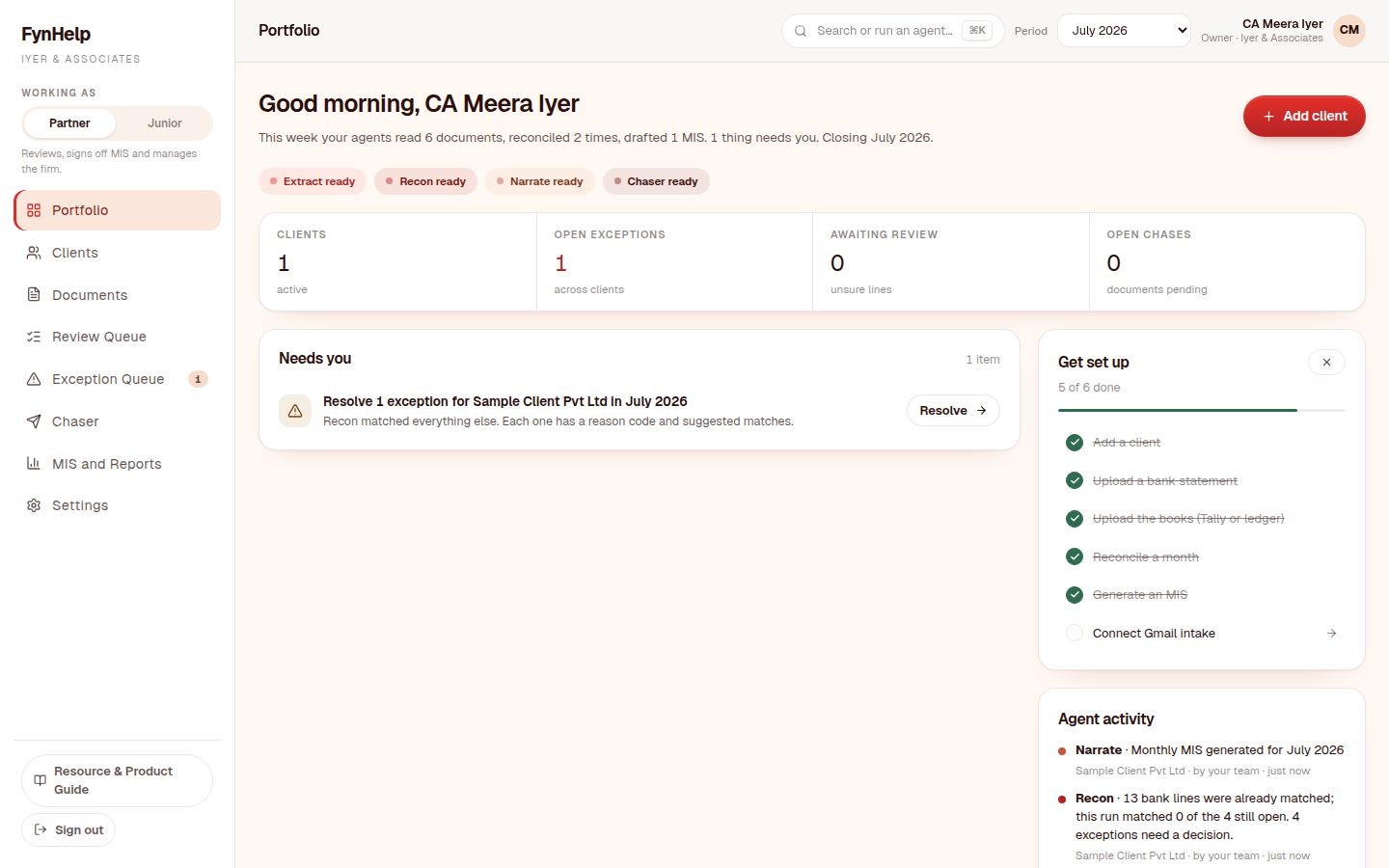
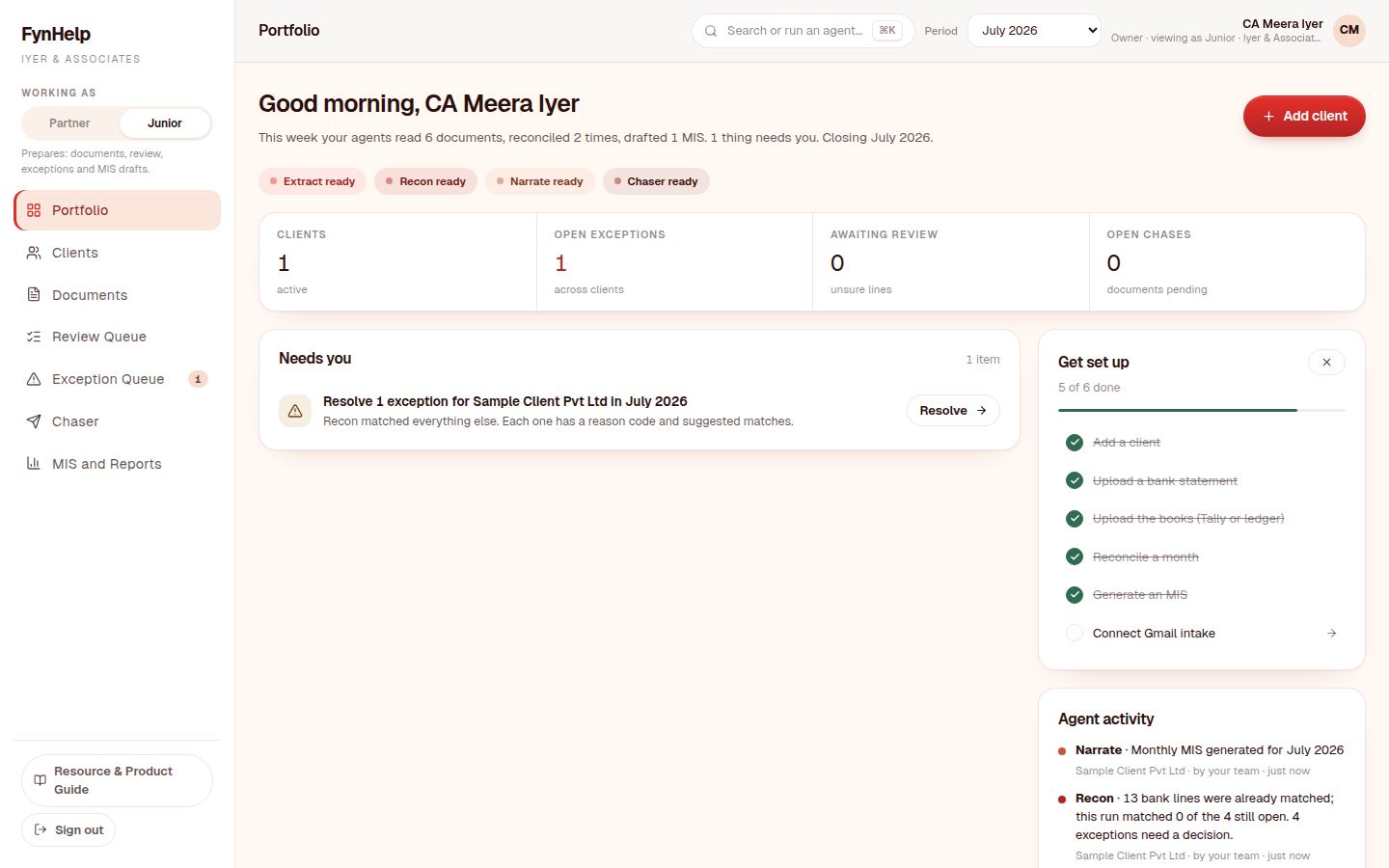
The Portfolio shows every client's status for the month and what needs you. Switch Working as to Junior to see the preparer's view: documents, review, exceptions and MIS drafts. Settings, connections, what the agents remember and sign-off stay with partners, and the server enforces it.
Doing it with a real client
- Export the client's bank statement as CSV or Excel from net banking (PDF works too), and the Tally day book or bank ledger for the same month.
- Add the client, pick the month at the top, and upload both.
- Upload the GST and TDS registers, payroll and gateway reports if you have them.
- Run recon, clear the exception queue with notes, generate the MIS, and sign it off.
Questions or a file that does not read correctly? Write to support@fynhelp.com; a founder reads every email. Or start free and try the sample files now.
Keep reading
How FynHelp helps
FynHelp runs a CA firm's month-end close in four steps: bank statement and Tally export extraction, bank reconciliation, source-traceable MIS reports and automated document follow-ups. See pricing for CA firms.
FynHelp reads statements and Tally exports, matches bank to books and drafts the MIS. Free to start, no card needed.
Start free trial