
How to send Tally data to FynHelp from your office PCs
By FynHelp Editorial Team, Month-end close for CA firms
Export the client's bank ledger from TallyPrime as XML for the month, then upload it on the Documents page or email it to the firm inbox. Works the same on one PC or an office network.
Short answerIn TallyPrime, open the client's bank ledger (Gateway of Tally → Display More Reports → Account Books → Ledger), set the month with Alt+F2, and export with Alt+E → Current → File Format XML (Data Interchange). Then upload the file on FynHelp's Documents page under the client, or email it to the firm inbox FynHelp reads. Nothing is installed on your PCs.
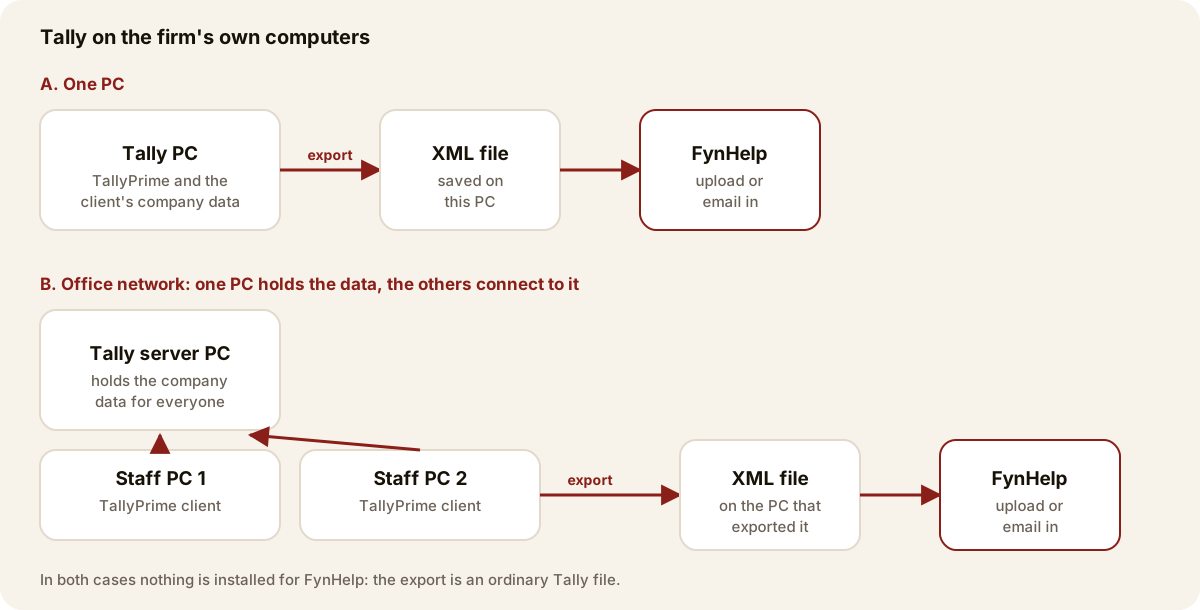
Most CA firms run TallyPrime on their own Windows PCs: either one PC, or one PC that holds the company data with staff PCs connecting to it over the office network. The steps are the same in both. If your Tally runs on a hosted server you reach through Remote Desktop, see the Tally on Cloud guide instead.
What to export
FynHelp needs the books side of each bank account for the month: the vouchers posted to the client's bank ledger. Export the bank ledger rather than the whole Day Book where you can; it keeps the file small and only contains what Recon needs. A Day Book export also works.
The five steps
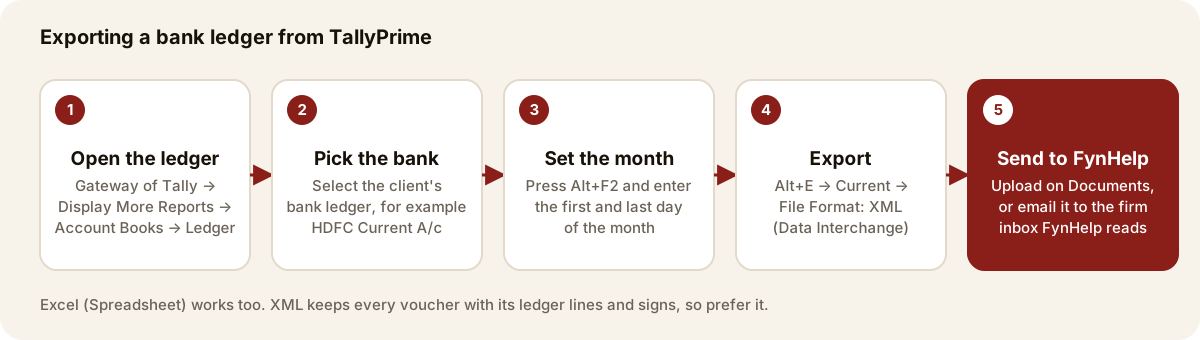
- Open the ledger. In the client's company, go to Gateway of Tally → Display More Reports → Account Books → Ledger.
- Pick the bank. Select the bank ledger, for example HDFC Current A/c. Do this once per bank account.
- Set the month. Press
Alt+F2and enter the first and last day of the month. - Export. Press
Alt+E→ Current. Set File Format to XML (Data Interchange), note the folder it saves to, and export. Excel (Spreadsheet) also works. - Send it to FynHelp. Upload it, or email it in (below).
Upload on the Documents page
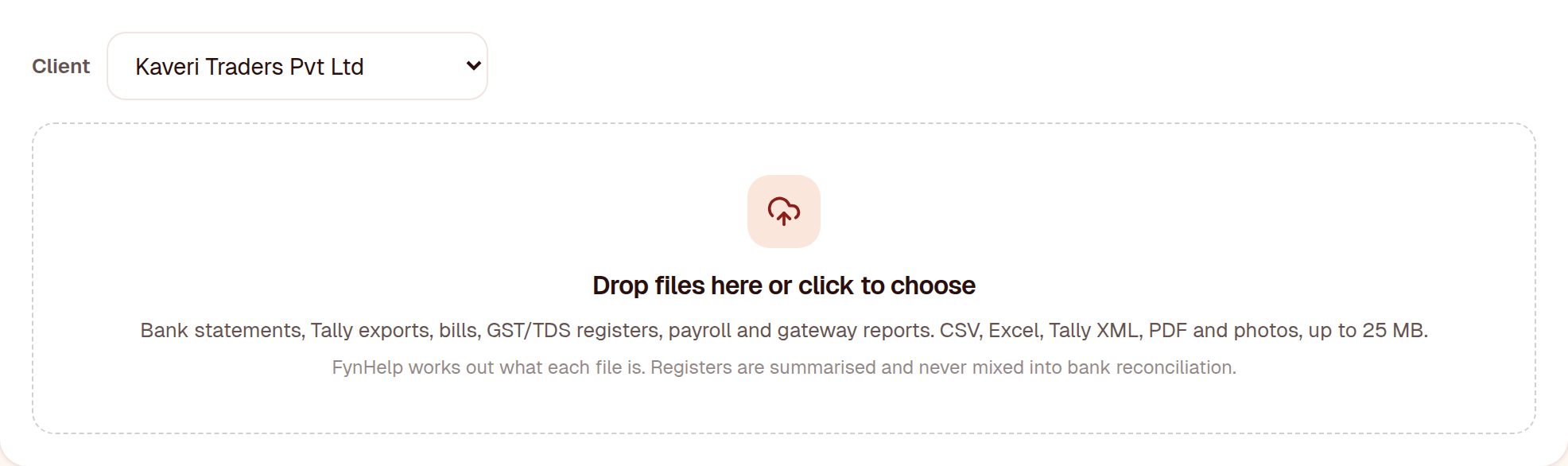
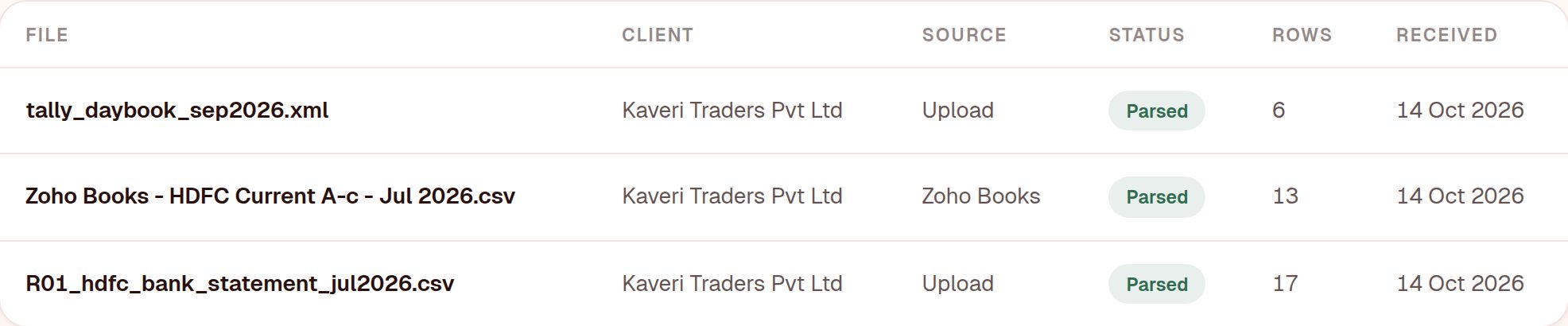
Open Documents, choose the client, and drop the file or click to choose it. FynHelp recognises a Tally export on its own and reads every voucher; you can drop the bank statement in the same place.
Or email it to the firm inbox
If a partner has connected the firm's Gmail inbox in Settings, files emailed there arrive on their own every few minutes. FynHelp works out the client from the sender; anything it cannot place waits under Unassigned on the Documents page, where you choose the client.
Common problems
- Wrong month: the export follows the period on screen. Check the first and last dates before exporting.
- Two bank accounts: export each bank ledger separately.
- Same file twice: FynHelp spots an identical file and keeps the first one.
- Optional or post-dated vouchers: leave them out of the month's export.
Frequently asked questions
Do I need to install anything for Tally?
No. The export is an ordinary Tally file, and you send it through the browser or by email.
Does FynHelp change anything in Tally?
No. FynHelp reads exports and never writes vouchers back. Corrections are made in Tally by your team, and the next export picks them up.
XML or Excel?
XML where you can. It keeps every voucher with its ledger lines and signs. Excel works but flattens the structure.
We use Tally on an office network. Which PC should export?
Any PC that can open the client's company. The file is saved on the PC that exported it.
Keep reading
How FynHelp helps
FynHelp runs a CA firm's month-end close in four steps: bank statement and Tally export extraction, bank reconciliation, source-traceable MIS reports and automated document follow-ups. See pricing for CA firms.
FynHelp reads statements and Tally exports, matches bank to books and drafts the MIS. Free to start, no card needed.
Start free trial