
Tally on Cloud or Remote Desktop: getting exports into FynHelp
By FynHelp Editorial Team, Month-end close for CA firms
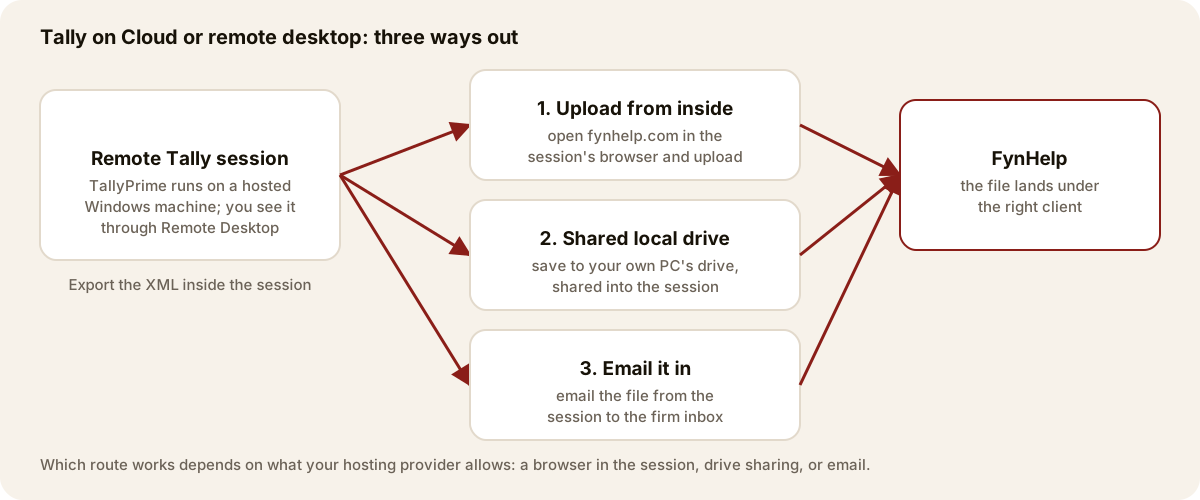
When TallyPrime runs on a hosted machine, export inside the session as usual, then get the file out by uploading from the session's browser, saving to a drive shared from your PC, or emailing it to the firm inbox.
Short answerExport the client's bank ledger as XML inside the remote Tally session, exactly as on a local PC. Then use whichever route your hosting provider allows: open fynhelp.com in the session's browser and upload, save the file to your own PC's drive shared into the session, or email it from the session to the firm inbox FynHelp reads.
Many firms run TallyPrime on a hosted Windows machine (Tally on Cloud, a provider's server, or the firm's own server) and reach it through Remote Desktop. The Tally steps do not change. What changes is where the exported file lands: on the remote machine, not your laptop.
Step 1: Export inside the session
In the remote session, open the client's bank ledger (Gateway of Tally → Display More Reports → Account Books → Ledger), set the month with Alt+F2, and export with Alt+E → Current → File Format XML (Data Interchange). The full walkthrough with a diagram is in the office PC guide.
Step 2: Get the file to FynHelp
Route 1: Upload from inside the session
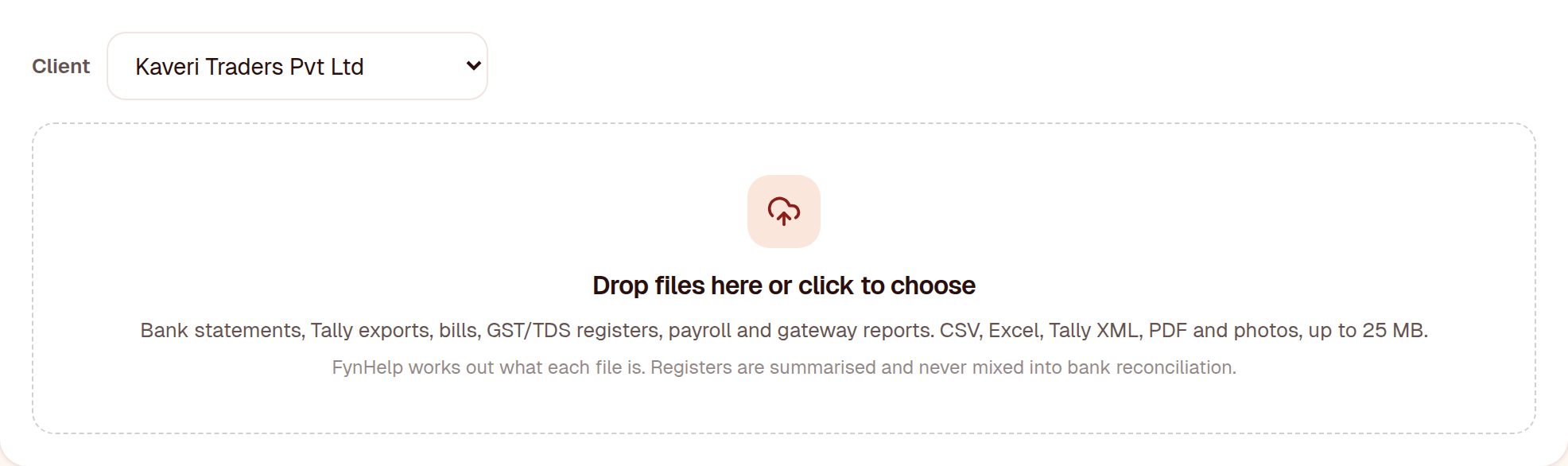
If the remote machine has a browser and internet access, sign in to fynhelp.com there, open Documents, choose the client and upload the file from the export folder. This is the quickest route when it is allowed.
Route 2: Save to a drive shared from your PC
Remote Desktop can share a drive from your own computer into the session. On Windows, before connecting: Remote Desktop Connection → Show Options → Local Resources → More → tick the drive. On a Mac, add a redirected folder in the connection's settings. Your drive then appears inside the session; export to it, and upload from your own computer.
Route 3: Email it to the firm inbox
If the session can send email, attach the export and send it to the firm inbox a partner has connected in FynHelp Settings. It arrives within minutes; if FynHelp cannot tell which client it belongs to, it waits under Unassigned on the Documents page.
If none of the routes is allowed
Some providers lock sessions down: no browser, no drive sharing, no email. Ask your provider which file-transfer option they support (most offer one) and use it to move the export to your PC, then upload as usual.
Frequently asked questions
Does FynHelp need access to our cloud server?
No. FynHelp never connects to your server. You export a file and send it; that is all FynHelp sees.
Is the Tally export the same on cloud and on a local PC?
Yes. TallyPrime behaves the same; only the location of the saved file differs.
Which route is safest?
All three keep the file within your firm's own tools. Uploading from inside the session avoids copying the file to another device at all.
Keep reading
How FynHelp helps
FynHelp runs a CA firm's month-end close in four steps: bank statement and Tally export extraction, bank reconciliation, source-traceable MIS reports and automated document follow-ups. See pricing for CA firms.
FynHelp reads statements and Tally exports, matches bank to books and drafts the MIS. Free to start, no card needed.
Start free trial